
.webp)

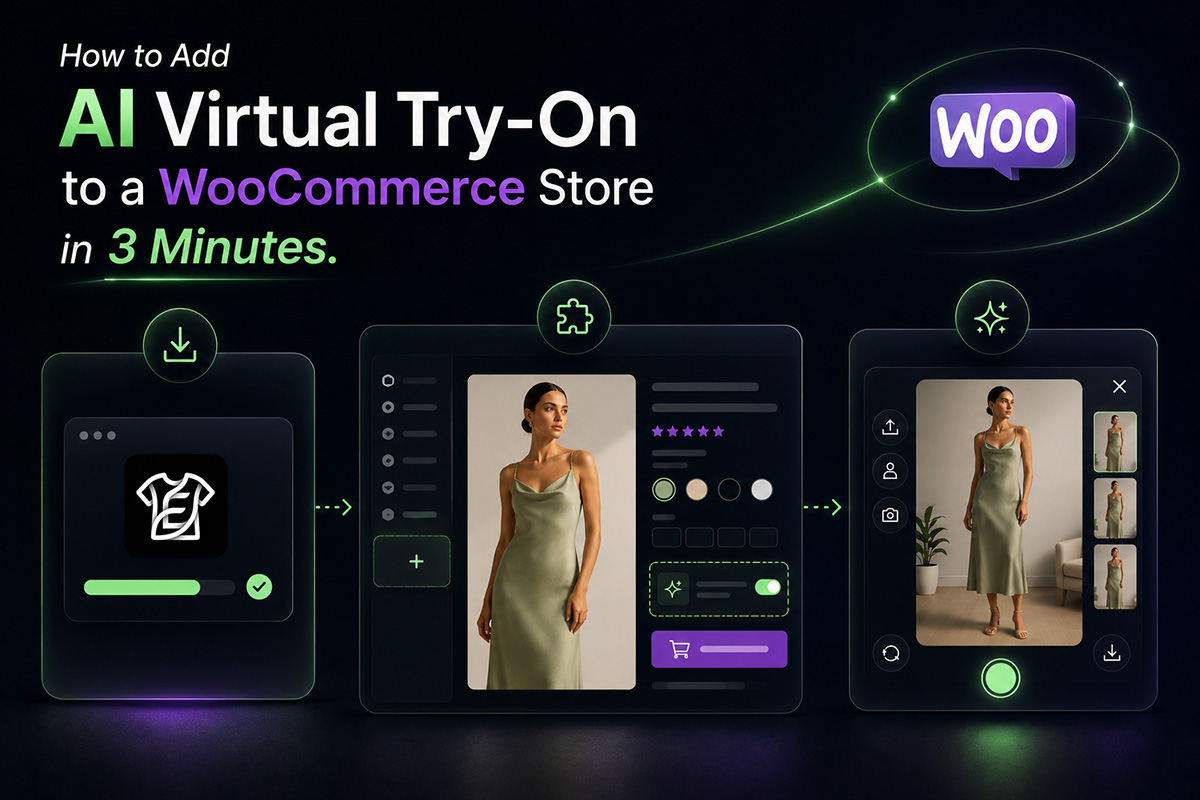
If your WooCommerce store sells clothing, adding AI virtual try-on should not require rebuilding your product pages.
With the ETRYON Virtual Try-On plugin, you can add a try-on modal to WooCommerce product pages, let shoppers upload or capture a full-body photo, and keep the result connected to product options and cart actions.
This guide shows how to add AI virtual try-on to a WooCommerce store in about 3 minutes, what to configure first, and how to test the flow before customers use it.
The goal is not to add a flashy AI widget. The goal is to make the product page more useful at the exact moment shoppers are deciding.
Before You Start
Before installing the plugin, make sure your WooCommerce setup is ready.
- A WordPress site with WooCommerce installed and active.
- Product pages for apparel or fashion items.
- Clear product images for the items you want shoppers to try on.
- Variation images if your products use color or style options.
- An ETRYON account and API key from app.etryon.ai.
Start with a few strong products first. Dresses, tops, outerwear, and visually distinctive apparel usually make better first tests than small accessories or products with weak imagery.
Step 1: Install the ETRYON WooCommerce Plugin
Install ETRYON from the official WordPress plugin directory.
After activation, open the Etryon Try-On menu in WordPress admin.
The setup wizard will guide you through the basic connection steps, including adding your ETRYON API key and confirming that your store is ready to send try-on requests securely.
Step 2: Connect Your ETRYON API Key
WooCommerce stores need an ETRYON API key before the plugin can generate try-on images.
To get one, register or log in at app.etryon.ai, and open the API key area in your dashboard. Copy the API key from your ETRYON account, then paste it into the WooCommerce plugin settings.
The API key is used server-side, so it is not exposed in the storefront UI.
Once the key is valid, the plugin can communicate with ETRYON's generation service from your WooCommerce store.
Setup noteIf your store uses a custom domain, confirm the site domain in the plugin settings. Domain validation helps keep requests tied to the correct storefront.
Step 3: Decide Which Products Should Show Virtual Try-On
Not every WooCommerce product needs virtual try-on.
Use the plugin's generation settings to decide where the try-on button should appear. A focused rollout is usually better than turning it on for every product at once.
Good candidates include:
- Apparel products with clear front-facing images.
- Products where color or style affects the buying decision.
- Items with enough margin or traffic to justify testing.
- Products where shoppers often hesitate before checkout.
You may want to avoid products like gift cards, non-apparel items, or products with images that are too small, cluttered, or inconsistent.
Step 4: Configure the Storefront Experience
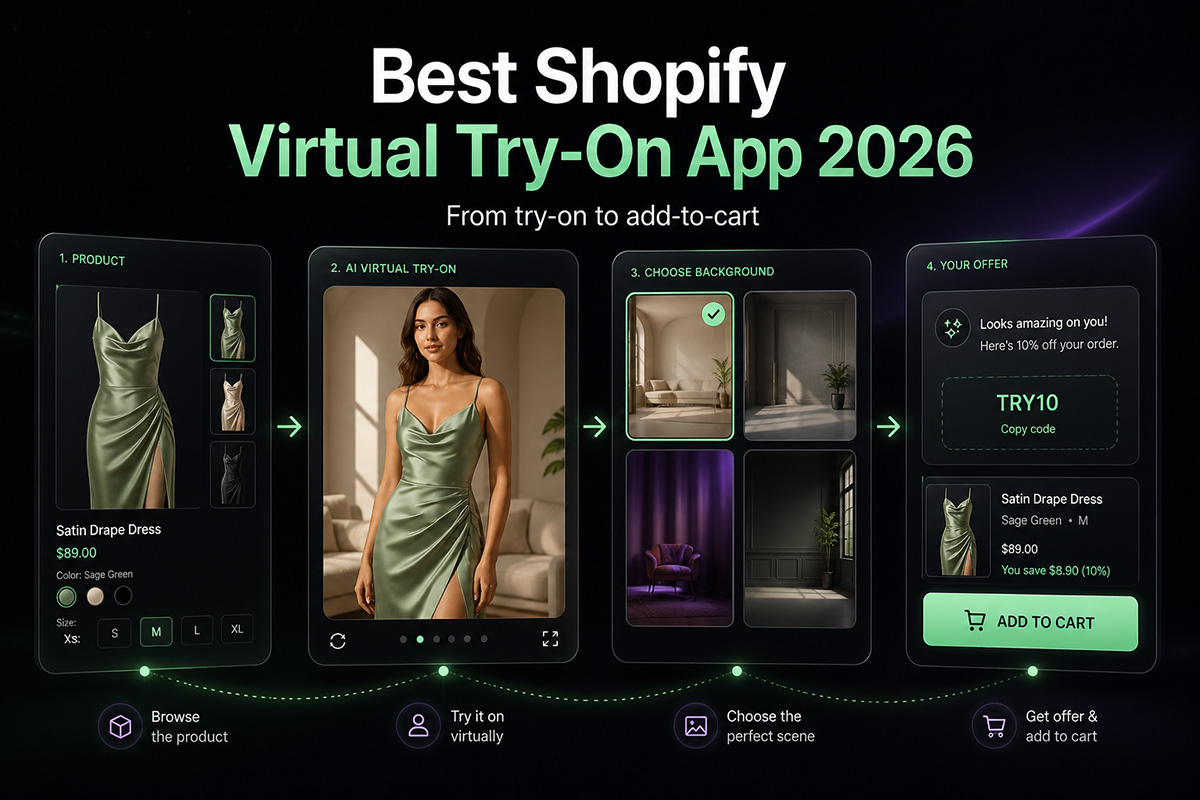
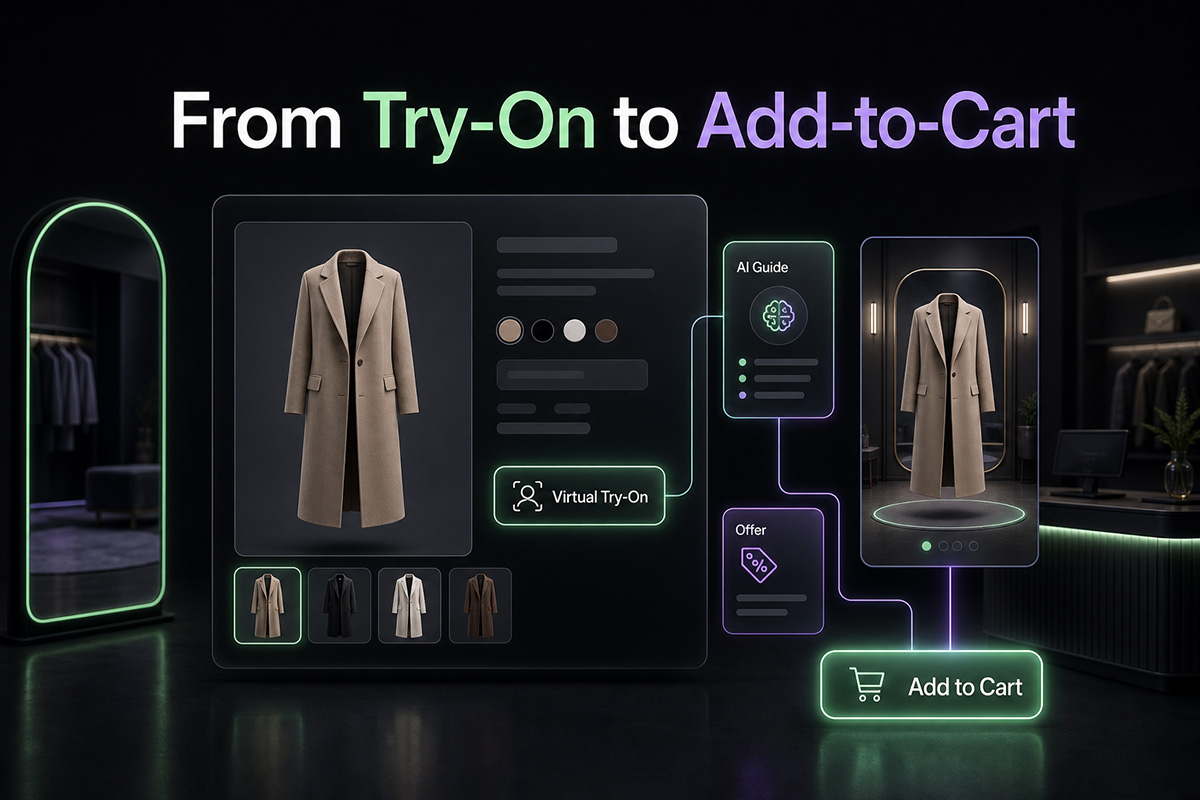
ETRYON adds a try-on modal to WooCommerce product pages. Shoppers can upload or capture a photo, generate a try-on result, view their history, and add the product to cart from the modal.
In the WordPress admin settings, review these areas:
- Text & Styles: customize button text, modal copy, colors, radius, and typography.
- Generation settings: choose aspect ratio, background behavior, beauty options, and product rules.
- Images & Storage: set upload limits, allowed file types, recent uploads, and retention settings.
- Marketing: configure a post-try-on offer if you want to show a coupon after a successful result.
Step 5: Test the Try-On Flow on a Product Page
Open a WooCommerce product page where ETRYON is enabled and test the full shopper journey.
- Click the virtual try-on button.
- Upload or capture a full-body photo.
- Generate the try-on result.
- Check whether the correct product or variation image is used.
- Open the larger result preview.
- Try adding the item to cart from the modal.
- Review the experience on mobile.
Step 6: Review History, Limits, and Store Behavior
ETRYON includes shopper-friendly features such as recent uploads and try-on history, but you should still decide how they fit your store.
Review your settings for:
- Daily try-on limits for guests or logged-in users.
- How long uploaded photos are retained.
- How long generated images are stored.
- Whether recent uploads should appear in the modal.
- Whether a post-try-on coupon prompt should be enabled.
Common WooCommerce Setup Mistakes to Avoid
Using poor product images
AI virtual try-on depends heavily on the source product image. Start with products that have clean, clear apparel photos.
Forgetting product variations
If a product has multiple colors or styles, make sure variation images are set correctly. This helps the try-on result match the option the shopper selected.
Over-customizing before testing
Style matters, but the first priority is a smooth flow. Test upload, generation, result preview, and add-to-cart behavior before polishing every label.
Ignoring mobile shoppers
Many fashion shoppers browse from phones. Test the modal, upload flow, result image, and cart action on mobile before launching broadly.
What a Good 3-Minute Setup Looks Like
A practical first setup does not need to be complicated.
- Install and activate the plugin.
- Add your ETRYON API key.
- Enable try-on for a small group of strong apparel products.
- Keep button and modal copy clear.
- Run one full test from upload to add to cart.
Once that works, you can refine styling, product rules, background settings, retention, limits, and post-try-on offers.
Watch the WooCommerce Setup Tutorial
If you prefer a visual walkthrough, you can watch the official WooCommerce setup tutorial here:
Watch the ETRYON WooCommerce setup tutorial on YouTube.
The video shows how to install the WordPress plugin, connect your ETRYON account and API key, and configure the virtual try-on experience for WooCommerce product pages.
Adding AI virtual try-on to WooCommerce is not just a plugin installation.
It is a product-page decision: which products should support try-on, how shoppers upload photos, and how the result leads back to cart.
Set up ETRYON with that flow in mind, and virtual try-on becomes a practical part of your WooCommerce fashion store.


.avif)

