
.webp)

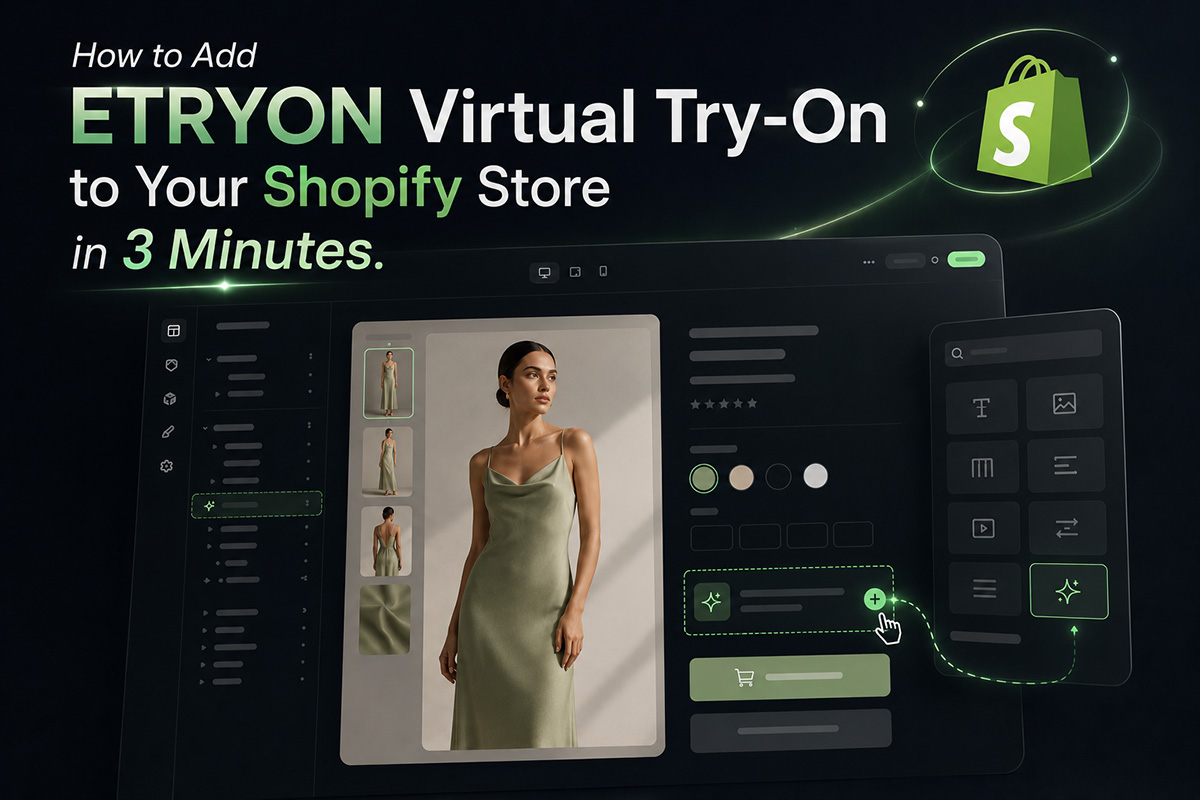
If your Shopify store sells apparel, adding ETRYON Virtual Try-On is not just about adding another button to the product page.
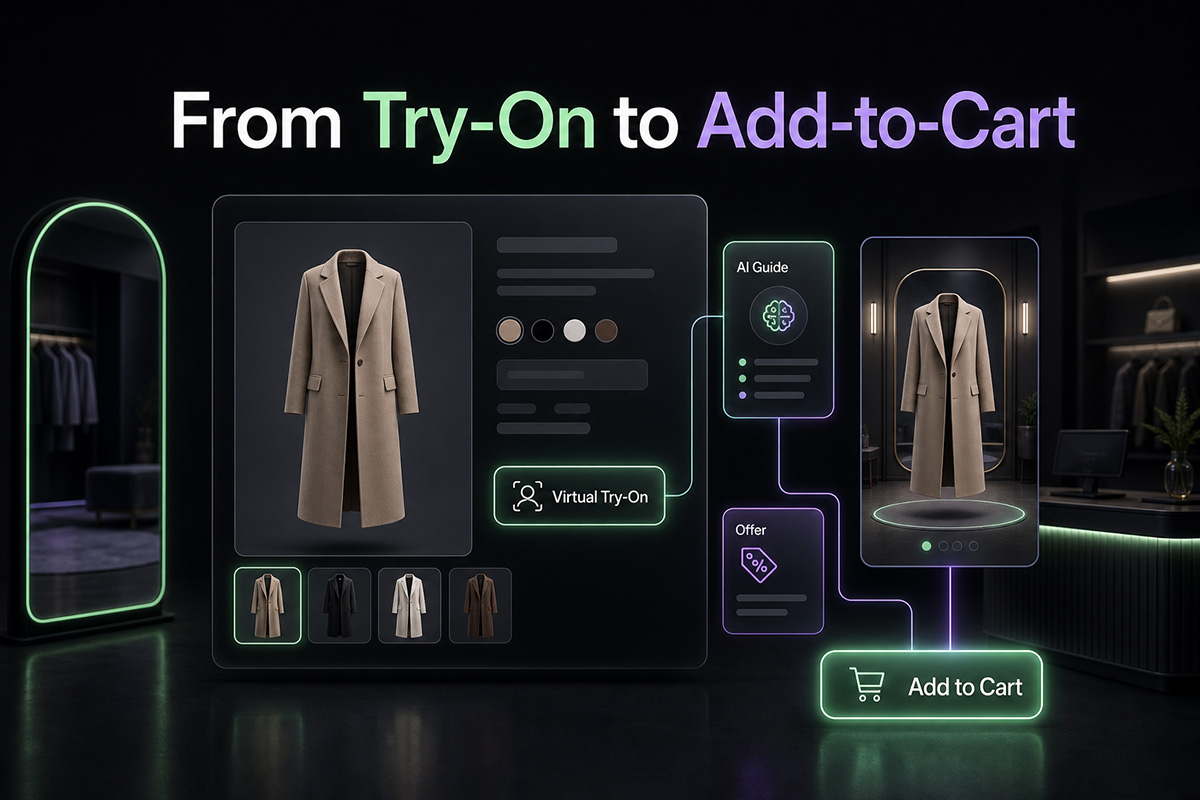
The real goal is simpler: let shoppers preview the selected garment in a more visual way, then keep them close to the product, variant, and cart action.
This guide walks through how to add ETRYON Virtual Try-On to your Shopify store, what to configure first, and how to test the experience before you publish it to customers.
The best virtual try-on setup is not the one that looks the most dramatic. It is the one that fits naturally into the product-page buying flow.
Before You Start
Before installing ETRYON on Shopify, make sure your store has the basics ready.
- A Shopify Online Store with product pages.
- Clear product images for the apparel items you want to enable.
- Variant images if your products rely on color or style options.
- A product template where you can add an app block.
- A few test products that represent your real catalog.
ETRYON works best when product images are clean and easy for shoppers to understand. If your catalog has inconsistent images, start with a smaller group of products first.
Step 1: Install ETRYON from the Shopify App Store
Start by installing ETRYON from the official Shopify App Store page.
After installation, open ETRYON inside Shopify Admin. The app dashboard will help you confirm that the store is connected and ready for setup.
This is also where you can review your available try-ons, recent generation activity, and performance data after the app goes live.
Step 2: Add the ETRYON Try-On Block to Your Product Template
ETRYON appears on Shopify product pages through a theme app extension.
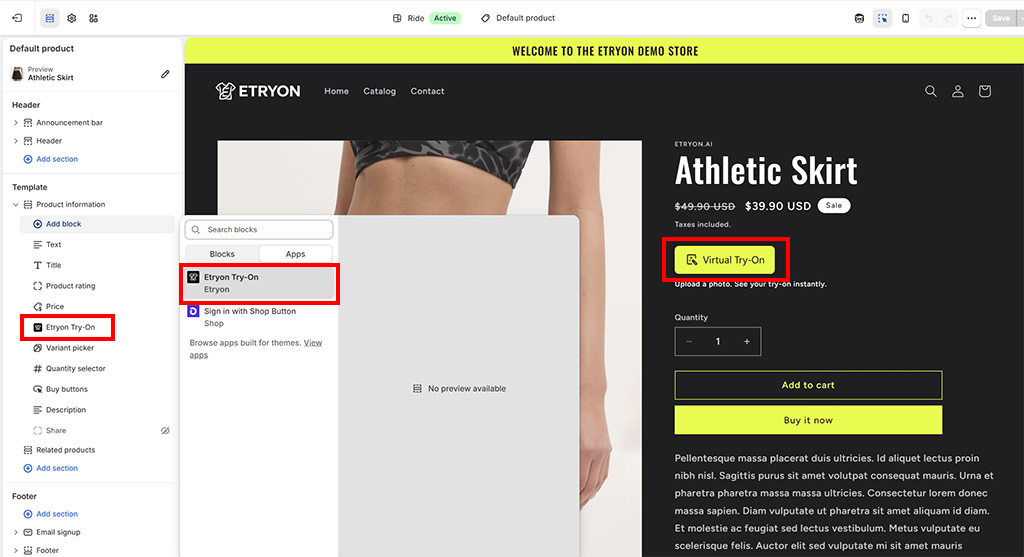
In Shopify Admin, open your theme editor and go to a product template. Add the Etryon Try-On app block where it makes sense in the buying flow.
For most fashion stores, a good position is near the product media, variant selector, or add-to-cart area. The button should be visible, but it should not compete with the main purchase action.
Placement tipTreat virtual try-on as a decision helper. Place it close enough to the variant and cart area that shoppers understand what to do after seeing the result.
Step 3: Choose Which Products Should Show Try-On
Not every product needs virtual try-on.
Inside ETRYON's generation settings, you can control product availability. Depending on your catalog, you may choose to enable try-on for all products, selected collections, or specific products.
This control is useful when you want to start with the products that benefit most from try-on, such as dresses, tops, outerwear, or products with strong visual styling.
You may want to exclude products like gift cards, accessories, non-apparel items, or products with images that are not suitable for generation.
Step 4: Configure the Try-On Experience
Once the app block is in place, configure the storefront experience so it feels consistent with your brand.
Useful settings to review include:
- Button text: make the action clear, such as “Virtual Try-On” or “Try It On”.
- Helper text: explain the action briefly without adding clutter.
- Modal copy: guide shoppers through upload, generation, and result steps.
- Colors and radius: make the modal and button feel native to your storefront.
- Aspect ratio: choose the output framing that fits your product imagery.
- Background settings: keep generated results aligned with your merchandising style.
- Daily limits: control usage for guests and customers if needed.
- Recent uploads: let returning shoppers reuse a recent photo more easily.
Do not over-customize on the first day. Start with a clean setup, test it, and then refine based on how it feels on your actual product page.
Step 5: Test the Shopper Flow
Before publishing the experience broadly, test it like a shopper.
Open a product page and go through the full flow:
- Click the ETRYON try-on button.
- Upload or capture a full-body photo.
- Generate a try-on result.
- Check whether the correct product or variant image is used.
- Review the result modal on desktop and mobile.
- Try selecting variants after the result appears.
- Add the item to cart from the try-on flow.
The goal is not only to confirm that AI generation works. The goal is to confirm that the shopper can move naturally from product interest to try-on result to cart.
Step 6: Review Performance After Launch
After ETRYON is live, use the dashboard to watch how shoppers interact with the feature.
Useful signals include:
- How often shoppers see and click the try-on button.
- How many uploads are completed.
- How many generations succeed or fail.
- How long generation takes on average.
- How many shoppers add to cart after try-on.
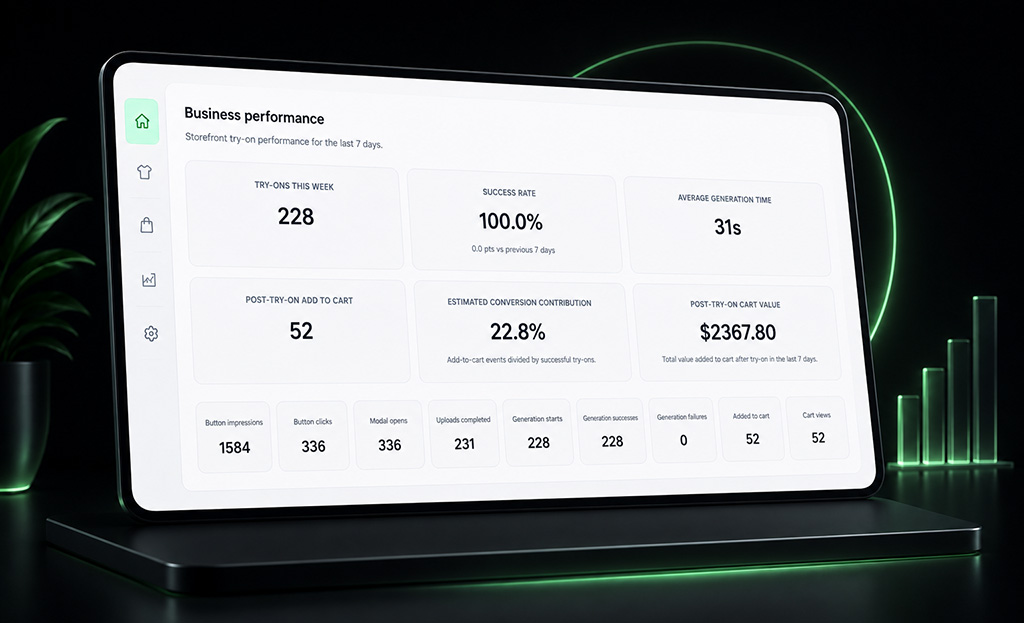
These metrics help you improve placement, product selection, copy, and styling. If shoppers click the button but do not complete uploads, the modal copy may need work. If results are generated but add-to-cart actions stay low, review product selection, pricing, variants, and the result-page call to action.
Common Setup Mistakes to Avoid
Putting the button too far from the buying area
If the try-on button is hidden far below the fold, shoppers may miss it. Keep it close to the product decision area.
Enabling try-on on every product immediately
Start with products that have strong product images and clear apparel use cases. Expand later.
Ignoring mobile
Many fashion shoppers browse on mobile. Test upload, modal layout, result preview, and add-to-cart behavior on a phone-sized viewport.
Using vague button copy
Clear copy usually works better than clever copy. Shoppers should understand the action instantly.
Watch the Shopify Setup Tutorial
If you prefer a visual walkthrough, you can watch the official Shopify setup tutorial here:
Watch the ETRYON Shopify setup tutorial on YouTube.
The video shows the setup process in Shopify, including where to add the app block and how to configure the store experience.
Adding ETRYON to Shopify is not just an installation task.
It is a product-page decision: where should virtual try-on appear, which products should use it, and how should shoppers move from result to cart?
Set it up with that journey in mind, and ETRYON becomes more than an AI feature. It becomes part of how your fashion store helps shoppers decide.


.avif)

